You can talk to AI with your voice. I spent most of my working life talking to people. In restaurants, you don’t type your way through a busy night. You talk.
Then I sat down with AI, and it wanted me to type.
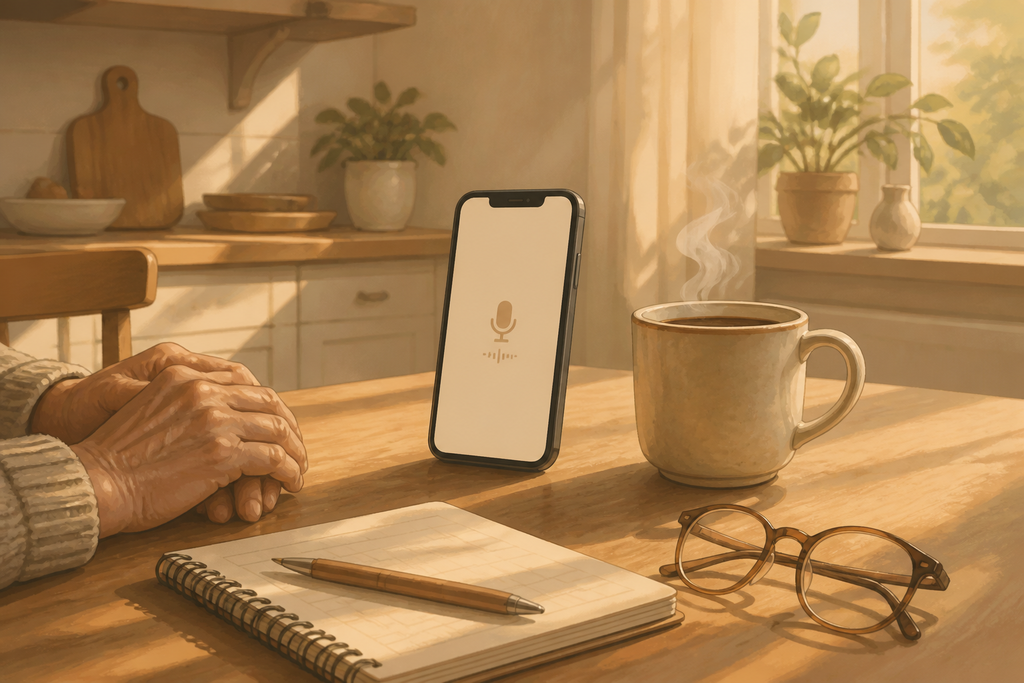
I’m 68. Typing is not my strength. I got tired of texting. My thumbs started aching. I would type a bit, wait, spell-check, type the next bit. I do that compulsively. That’s a lot of work for a simple thought.
The problem isn’t AI. It’s the keyboard.
Then I found out I could just speak. That was liberating.
I could say whatever was on my mind. I could go as long as I wanted. Even when I rambled through a sentence, Grok still figured out what I meant. It felt like banter with a trusted friend. I actually got lost in it. I forgot I was talking to Grok. It felt personal, like I was talking to a real person. The back and forth was faster. I could iterate and get to an answer without all the typing and waiting and spell-checking.
That’s my own experience. Yours might feel quieter. That’s fine.
It felt like a person. It is still a tool. Not a personality living in your phone. You can enjoy the conversation and keep that straight at the same time.
You don’t have to be good at typing. You can try it this week, in about five minutes.
If you’re brand new, start with What is AI? and How to Start Using AI Without Feeling Overwhelmed. This post is the next small step: stop typing, and talk.
Two ways to talk to AI with your voice (this confused me at first)
There are two ways to use your voice. They look similar. They are not the same.
1. Dictation. You speak. Your words turn into text in the box. You read it. You fix a word if you want. Then you send it. The AI answers in writing, the usual way.
2. Live voice chat. You talk back and forth, out loud. You hear an answer spoken to you. It feels more like a phone call than a typing session. That’s the one that gave me that back-and-forth banter.
I use both. Dictation is better when I care about the wording, like a note I might copy later. Live voice is better when I want to think out loud and ramble a little.
If a button is missing, don’t panic. These apps change the pictures on the buttons. Look for a microphone. If you don’t see one, update the app and look again. If it’s still missing, your phone or your plan may not include it yet. That is not you doing it wrong.
How I do dictation on my iPhone
There are two easy ways. Both use a small microphone.
In the Grok app. Open the Grok app and start a chat. In the box where you would type, look for a small microphone. That one is dictation. Tap it. If your phone asks permission to use the microphone, say yes.
With the iPhone keyboard. Your iPhone has its own microphone key on the keyboard. It works almost anywhere you can type, including Grok, Copilot, texts, and email. If you don’t see it, open Settings, tap General, tap Keyboard, and turn on Enable Dictation.
Speak in a normal voice, like you’re talking to a friend. Your words should appear as text. Read them. Fix anything that came out wrong. Then send.
That’s it. You spoke. Then you edited. Then you sent.
How I do live voice in the Grok app
Grok is the one I use most. If you want the longer story of why, I wrote How I Use Grok Every Day. This is just the talking part.
Live voice is a different button.
Open a chat in the Grok app on your phone. Near the message box, next to the microphone, look for a voice or sound-wave icon. That one starts a live conversation. Tap it. Allow the microphone if you’re asked.
Talk. Listen. Talk again.
When you’re done, look for an X or an exit control and leave voice. If Grok talks too fast for you, look for a settings icon on the voice screen. You can pick a different voice and slow it down.
A few honest notes, in plain English:
- Voice works in the Grok app on iPhone and Android, and on grok.com in a computer browser.
- Voice is included on the free plan, with limits. Paid plans raise the limits. I am not going to quote prices or minute caps, because they change. Check Settings and then Usage in the app to see where your account stands.
- If it keeps interrupting you, try headphones or a quieter room. A TV in the background will confuse it. Mine does.
If you don’t see the voice icon, update the app and look again. If it’s still missing, it may be a slow rollout. That is not a skill problem. Use dictation in the meantime. You still skipped the keyboard.
Another free option: Microsoft Copilot
I also keep the free Microsoft Copilot app on my phone. It can talk back and forth, too.
Open the Copilot app and tap the microphone in the message box. Allow the microphone if you’re asked. Copilot says hello out loud. Then you just talk. Tap the microphone again to mute yourself. Tap the X when you’re done. Microsoft says you get a written copy of the conversation afterward.
Microsoft says voice is not limited on the free app, but paying subscribers go first when it’s busy. A voice chat can also end on its own after a while, or if you go quiet. If that happens, tap the microphone and start again.
Other apps, like ChatGPT and Gemini, have voice too. The steps are similar. Grok and Copilot are the two I use for talking.
What I actually say
Talk like a person. You don’t need special words. These are copy-paste starters. Fill in the brackets. For dictation, speak them, then read the text before you send. For live voice, just say them.
A note I don’t want to type:
Please help me write a short, friendly note to [name] about [topic]. Keep it plain. Here’s what I want to say: [your rough thoughts]. Don’t make me sound fancy.
Explain something without the jargon:
I’m 68. Explain [topic] in plain English, like you’re talking to a friend. Keep it short. Then wait for my next question.
Talk me through dinner:
I have [list what’s in the fridge] and I need dinner for [number] people. Ask me one question at a time. Keep it simple. I don’t need a restaurant menu. I need a weeknight meal.
If the answer is too long, say: Make this simpler. Or: Stop there. I have another question.
What this will not do
This is the part I want to say out loud.
Talking to AI does not send the message for you. It does not book a table. It does not call anyone for you. It does not run your life. You still read what it wrote. You still decide. You still hit send, if you hit send at all.
Also, you are speaking out loud. Don’t dictate a password, a bank code, or anything you wouldn’t say in a quiet kitchen with someone else in the house.
It felt personal. It felt like banter with a friend. It is still a tool, not a person living in the phone. I wrote about the “someone to talk things through” side of this in How I Use AI as a Daily Companion. Different job. Same idea: you’re allowed to talk instead of type.
Try it once this week
This week, talk to AI with your voice once. Pick one small thing you were going to type anyway. A grocery question. A “what does this word mean” question. A note to a neighbor.
Open the app. Find the microphone. Talk.
If you want more of the everyday uses, not just the voice part, see How I Use AI Every Day as a 67-Year-Old. If you’re still choosing a tool, Best Free AI Tools for Beginners in 2026 is the honest roundup.
I’m still learning this with you. If your screen doesn’t match what I described, tell me in the comments. These buttons move around. I’ll update this when I see a change.
Did you try talking instead of typing? How did it go?
— Andrew
Want more plain-English AI help? Get my free 9-page starter guide.
The guide arrives in your welcome email right after you confirm.